
Inventory sync
Choose whether Shopify or Zoho owns your stock levels, and how often stock syncs.
Inventory sync keeps stock quantities the same in Shopify and Zoho. You choose one system as the source of truth and Zync copies its quantities to the other.
Open Products → Product Settings and scroll to Inventory Sync.
Before you switch it on
- Map your locations. Every Shopify location that holds stock needs a Zoho warehouse. See Location mapping.
- Link your products. Stock only syncs for variants that are linked to a Zoho item. Sync your products first, or link existing items with AI product matching. Variants with no link are skipped.
Switch it on
Turn on Enable inventory sync. An Active badge appears and the options below open. Save with the bar at the top of the Shopify admin.
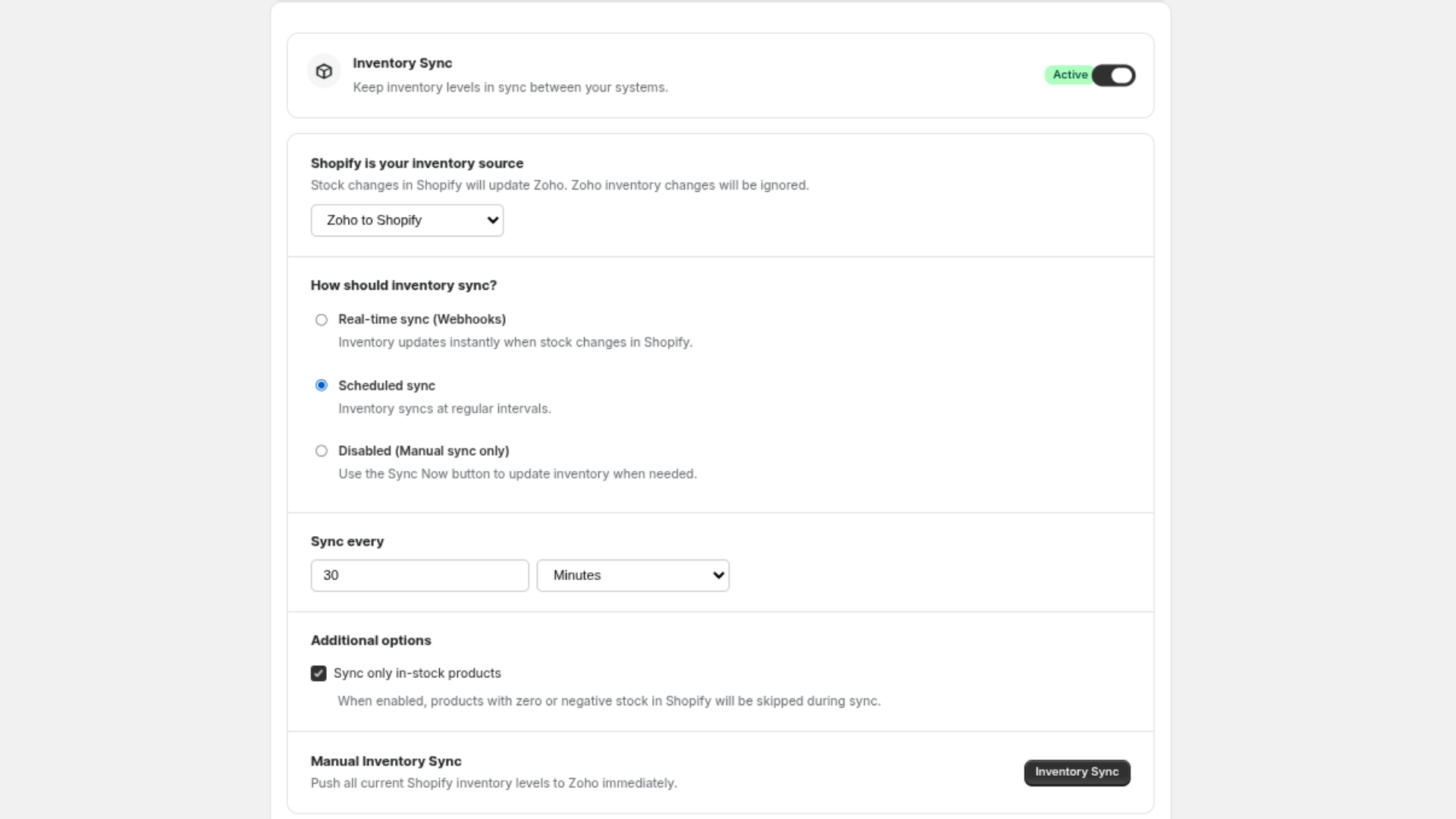
Choose the source of truth
| Direction | Use it when | Result |
|---|---|---|
| Shopify to Zoho | You receive and adjust stock in Shopify | Stock changes in Shopify update Zoho. Changes made in Zoho are not copied back |
| Zoho to Shopify | You receive and adjust stock in Zoho | Zoho quantities are written to Shopify. Changes made in Shopify are not copied back |
Stock flows one way. Pick the system your team actually updates when goods arrive.
Choose how it syncs
| Mode | What it does | Works with |
|---|---|---|
| Real-time sync (Webhooks) | Sends each stock change to Zoho as it happens in Shopify | Shopify to Zoho |
| Scheduled sync | Runs a full stock sync at the interval you set | Both directions |
| Disabled (Manual sync only) | Syncs only when you click Inventory Sync | Both directions |
For Scheduled sync, set Sync every to a number of Minutes or Hours. The default is every 30 minutes.
Zoho as the source of truth
Real-time sync reacts to stock changes in Shopify. When Zoho owns your stock, choose Scheduled sync so Zoho quantities are copied to Shopify at a regular interval.
Additional options
Sync only in-stock products: when this is ticked, products with zero or negative stock in Shopify are skipped during a sync.
Manual Inventory Sync
Click Inventory Sync to run a full sync now, in the direction you chose. Use it after the first setup, after a stock count, or whenever you want to be sure both sides agree.
To send one product's stock, open Products → Product Sync and click Sync inventory for this product on its row.
How quantities are matched
- Shopify to Zoho. For each linked variant, Zync reads the available quantity at each Shopify location and sets it in the mapped Zoho warehouse.
- Zoho to Shopify. For each Zoho item that is linked to a Shopify variant, Zync sets the Shopify quantity at the location mapped to the item's warehouse. If that warehouse has no mapping, the first mapped location is used.
Stock and orders
Order sync and inventory sync are separate. Creating a sales order or an invoice in Zoho affects Zoho stock the way your Zoho settings say it should. If Shopify is your source of truth, each sale also lowers Shopify stock, and that change reaches Zoho through inventory sync.
The Product mapping table under Orders → Documents & Accounting (one case to 24 cans, for example) applies to order lines only. Stock sync does not use it.
If stock does not match
- Check that the location is mapped on the Connection page.
- Check that the variant shows a Zoho Item ID under Products → Product Sync.
- Open Logs and filter Type to Inventory.
- Run Inventory Sync and look at the logs again.