Product settings
Choose which product fields reach Zoho, how items are created and how existing items are matched.
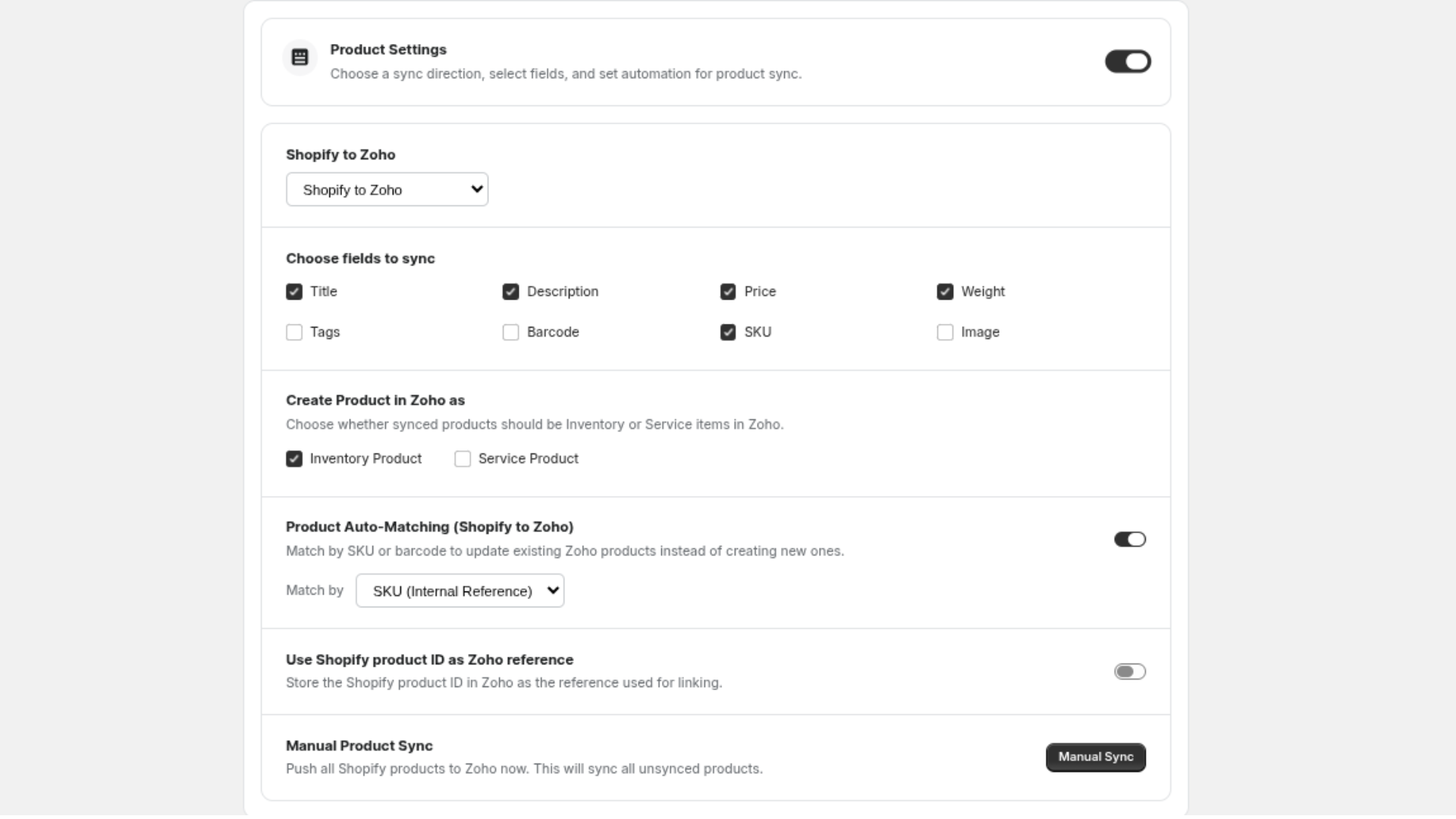
Open Products → Product Settings. Changes are saved with the Save bar at the top of the Shopify admin, except the automatic sync switch, which saves as soon as you flip it.
Automatic product sync
The switch Products will sync automatically at the top of the page controls whether Zync listens for product changes in Shopify.
| Switch | What happens |
|---|---|
| On | Creating or editing a product in Shopify queues a sync to Zoho |
| Off | Nothing syncs on its own. You can still sync from the Product Sync tab or from the Shopify admin |
Sync direction
Zync creates and updates Zoho items from your Shopify products. Keep the direction on Shopify to Zoho.
Items that already exist in Zoho
Zync does not create Shopify products from Zoho items. If your catalogue already exists in both systems, link the two with auto-matching or AI product matching so a sync updates the existing item instead of adding a duplicate.
Choose fields to sync
Tick the fields Zync should write to the Zoho item. Unticked fields are left as they are in Zoho.
| Field | Notes |
|---|---|
| Title | The item name. A name is always sent when an item is first created |
| Description | The product description |
| Price | The variant price, as the item's selling rate |
| Weight | The variant weight |
| Tags | The product tags |
| Barcode | The variant barcode |
| SKU | The variant SKU |
| Image | The product's featured image, uploaded to the Zoho item |
New installs start with Title, Description, Price and SKU ticked.
Create Product in Zoho as
| Option | Zoho item type | Use it for |
|---|---|---|
| Inventory Product | Goods | Physical products whose stock you track |
| Service Product | Service | Services and other items with no stock |
The choice applies to items Zync creates from now on. It does not change items that already exist.
Product Auto-Matching (Shopify to Zoho)
Before creating an item, Zync can look for one that already exists in Zoho and link to it. Auto-matching is on by default.
| Match by | Compares |
|---|---|
| SKU (Internal Reference) | The Shopify variant SKU with the Zoho item SKU |
| Barcode | The Shopify variant barcode with the Zoho item barcode |
| Product Name | The Shopify product title with the Zoho item name |
When a match is found, the Shopify product is linked to that item and the item is updated. When none is found, a new item is created.
Auto-matching looks at one value per product. For catalogues where SKUs differ between the two systems, or where names are similar but not identical, use AI product matching and review the suggestions yourself.
Use Shopify product ID as Zoho reference
When this is on, Zync stores the Shopify product ID on the Zoho item as its reference. Turn it on if your team looks items up in Zoho by their Shopify ID.
Manual Product Sync
Manual Sync queues every Shopify product that is not yet linked to Zoho. It does the same as Sync All Products on the Product Sync tab. Progress appears in Logs.
Related
- Product sync: what a synced product looks like in Zoho, and the product list.
- Inventory sync: the stock settings lower on the same page.